SCREENSHOT WORKFLOW GUIDE
Turn six product screenshots into a square-and-wide launch gallery
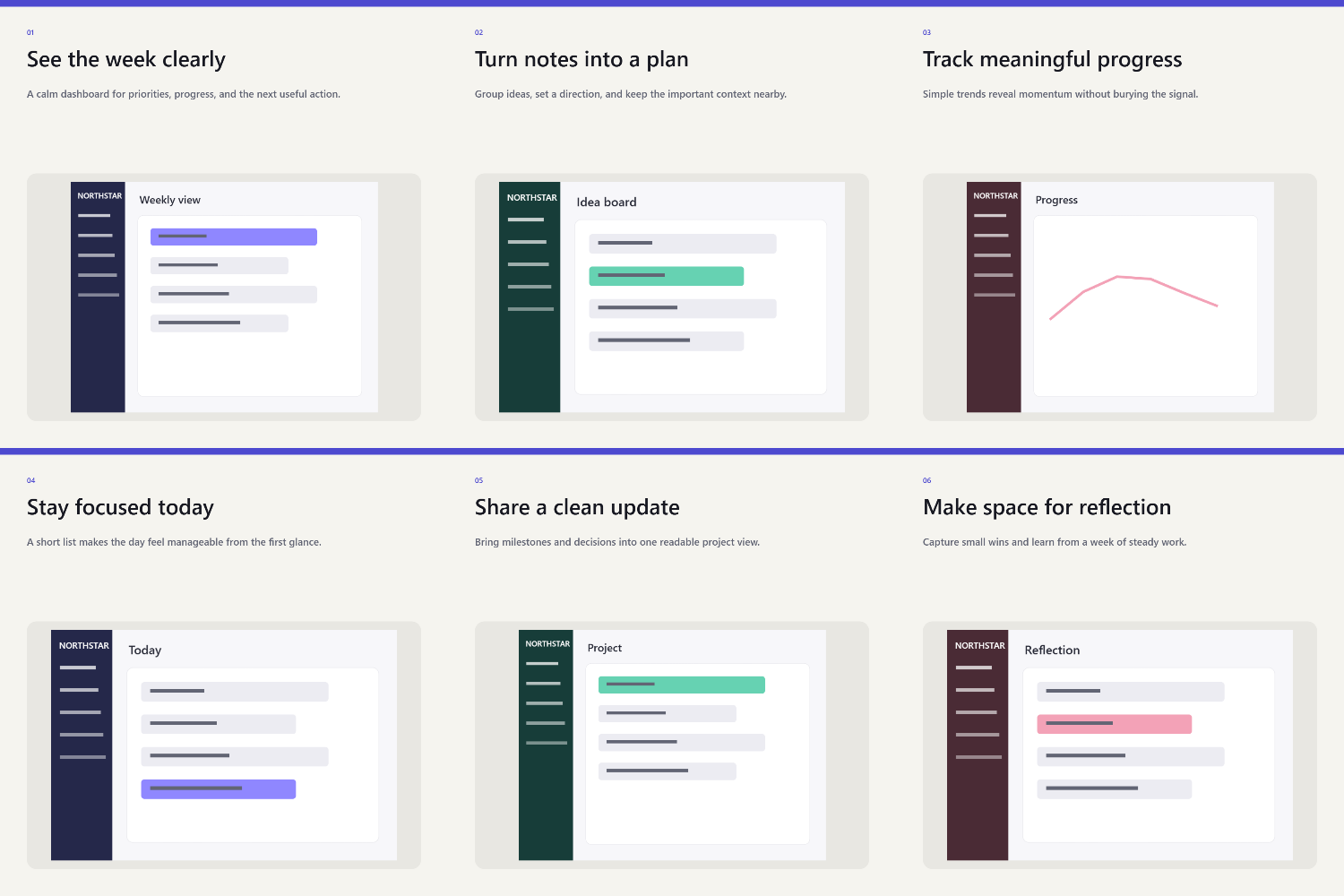
Gallery Batch Lab turns up to six screenshots into a matching set of image cards, with a title and short description for each screen. One export gives you square and wide versions plus a square overview.
Open Gallery Batch LabUse this workflow for a product walkthrough on your own website, a release announcement, or a short presentation where 1:1 and 16:9 images fit. Check the destination's requirements before publishing.
What goes in, and what comes out
Input
Up to six PNG or JPEG screenshots, no larger than 5 MB each. Give each image its own title and short description. Choose one brand color and optionally add a logo you have permission to use.
Output with six screenshots
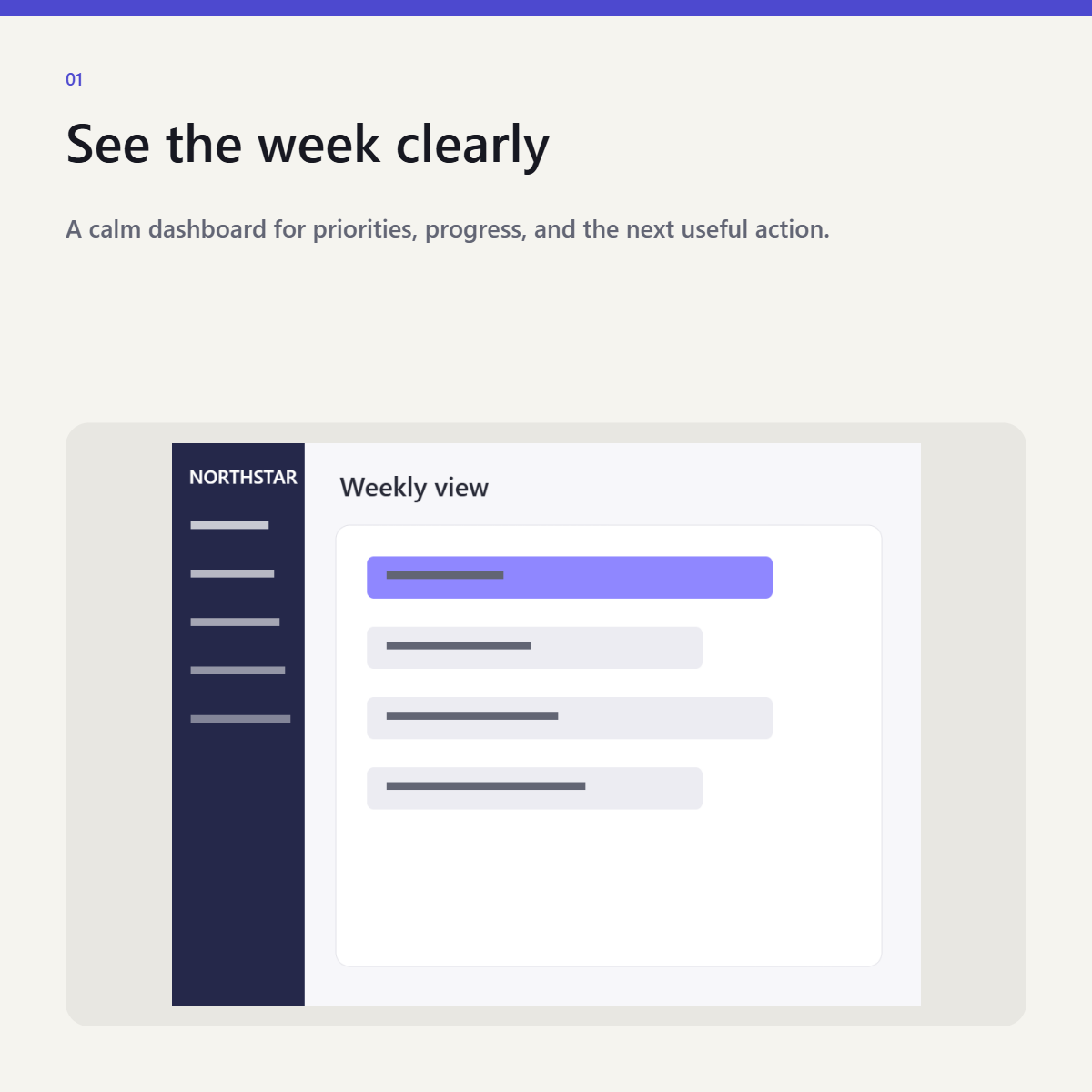
- Six square cards at 1200 × 1200
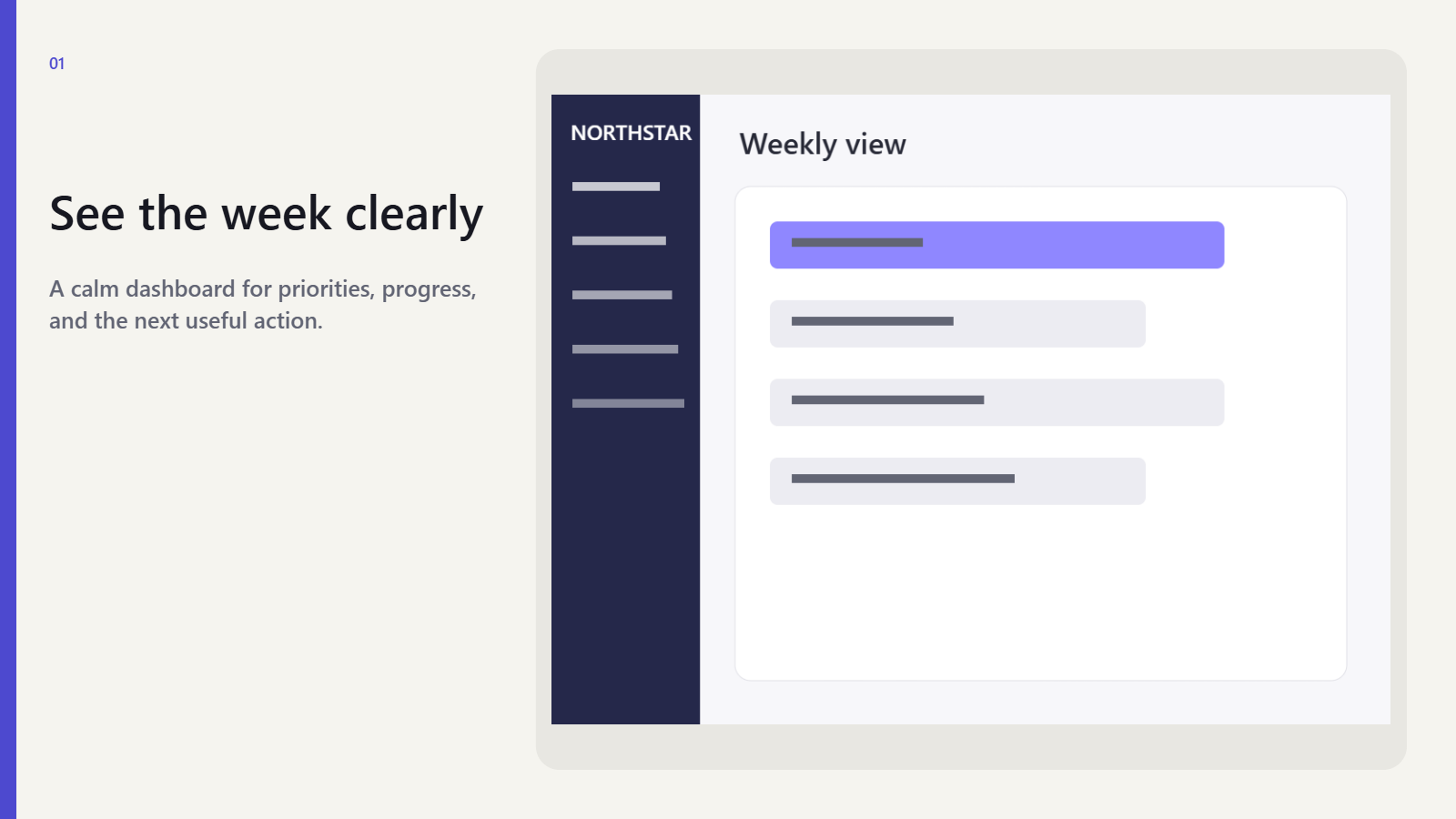
- Six wide cards at 1600 × 900
- One overview containing the square cards
The two card sizes and layout are fixed. The overview does not contain the wide cards.
Start with six screens, or try the sample
Open the tool in an empty tab. Choose Add images for your screenshots, or Try the sample to follow the workflow with six fictional interface images drawn by the tool.
Choose screens that explain a sequence: the starting view, the main action, the result, and supporting details. Remove names, email addresses, tokens and other private information before adding screenshots. The tool does not redact them.
Write one clear message per image
Select a thumbnail to edit its title and short description. The limits are 80 characters for the title and 180 for the description. Shorter copy is easier to review in both shapes.
Fictional example
Title: One place for the week
Description: Review your priorities before choosing the next task.
Describe only what the screen actually shows. Repeat for the other images so the gallery tells one connected story.
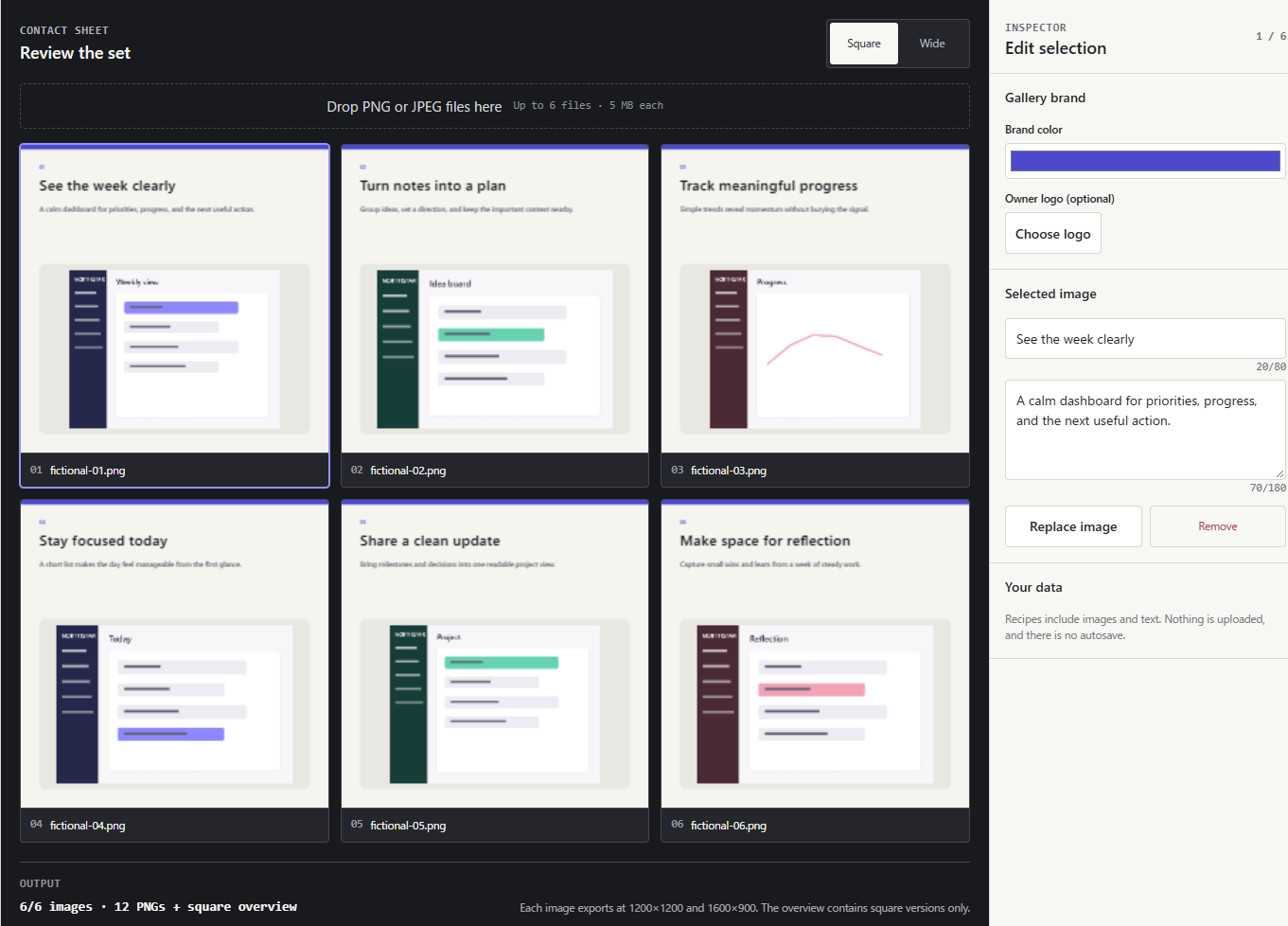
Set the shared look, then check both previews
Choose the gallery's brand color. Add your own logo if needed. Switch between Square and Wide and inspect every card: can you read the headline, and is the important part of the screenshot still clear?
The preview switch changes what you see on screen. The ZIP export includes both card sizes.
Save the whole set
Choose Save PNGs as ZIP. With all six images loaded, the tool creates twelve gallery PNGs and one square overview. Open the downloaded files and check them before using them on a website or in a post.
Keep the work data for your next update
Choose Save work data before closing the tab. Later, use Open work data to resume the gallery. Work data contains the images and entered text, so store and share it with the same care as the original screenshots.
When a screenshot changes, select its card and use Replace image to keep the existing title, description, order, brand color and logo while swapping the image. Check both previews and export again.
There is no autosave or cloud storage. Unsaved work is lost when the tab is closed.
Is this the right tool for the job?
It fits a small gallery with one shared layout, individual messages, and two fixed output ratios. Image processing runs in the browser and your images are not uploaded. No account is needed.
It does not offer arbitrary canvas sizes, batches above six images, background removal, screenshot capture from a URL, AI image generation, or redaction. The interface switches between English and Japanese; it does not translate your titles and descriptions.
Try the fictional sample
Review the two ratios and download the complete set before using your own screenshots.
Open Gallery Batch Lab